Esteps Calculator (Extruder Calibration)
Mark the filament, extrude a set length, measure what is left, and get the corrected E-steps with the G-code to save them.
This esteps calculator works out a corrected E-steps (steps-per-millimetre) value for your 3D printer’s extruder from a simple filament measurement. It also calculates flow (extrusion multiplier) settings from measured wall widths. You enter your current values, and the tool returns the new number along with the G-code line to set it.
The calculator runs in your browser. It is free, needs no sign-up, and uploads nothing. It also works on a phone, so you can calibrate at the printer without a computer.
Use it after changing the extruder, the drive gear or the firmware.
Lengths can be measured in millimetres or inches.
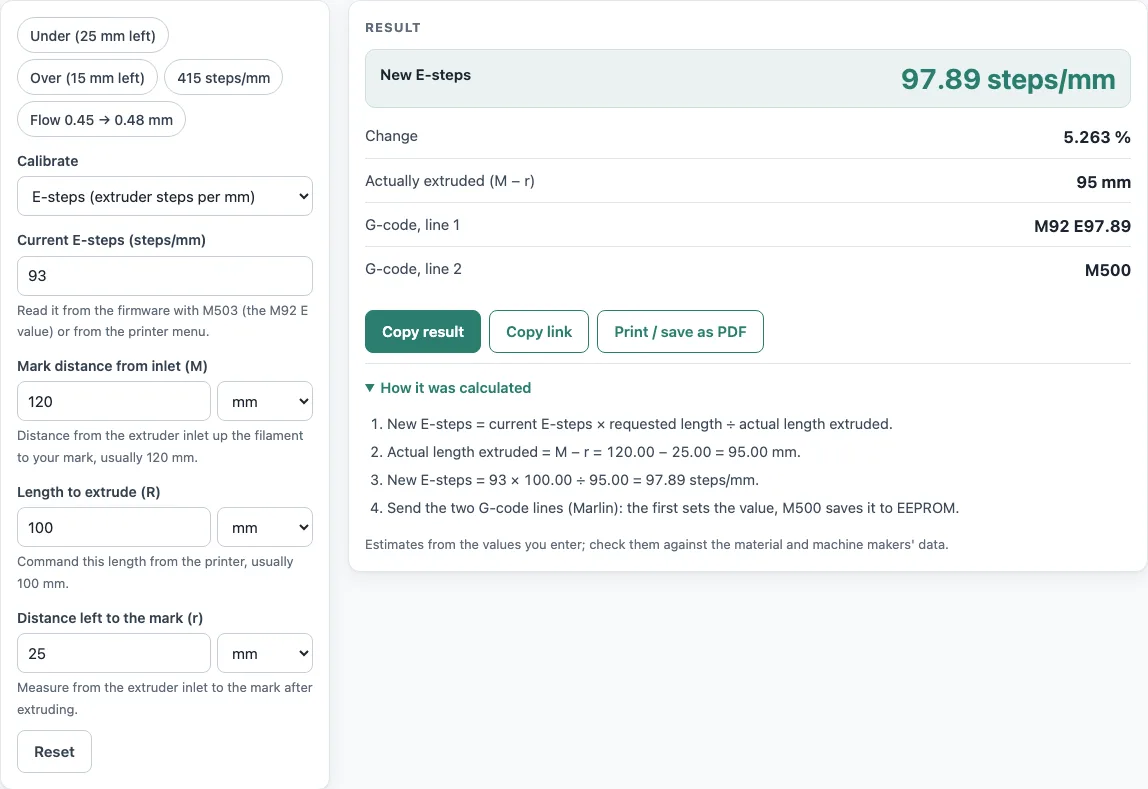
How to use the E-steps calculator
- Choose E-steps mode at the top of the tool.
- Enter your current steps/mm value from your firmware settings.
- Set the mark distance M. The default is 120 mm, the distance you marked above the extruder inlet.
- Set the extrude length R. The default is 100 mm.
- Measure the distance r that is left between the inlet and your mark after extruding, and enter it.
- Pick mm or inches for the lengths.
- Read the results as you type: new E-steps, change %, actually extruded length, and the M92 E and M500 lines.
- Open How it was calculated to check the formula with your numbers.
For flow, switch to Flow (extrusion multiplier) mode, enter your current flow %, the expected and measured wall widths, and copy the M221 S line.
Copy result copies the result lines with a link. Copy link copies the page address, which stores every input, so opening it later restores the same calculation. Print / save as PDF prints the inputs, results, calculation steps and the date.
The presets show an under-extruding case (25 mm left), an over-extruding case (15 mm left), a geared extruder at 415 steps/mm and a flow correction from 0.45 to 0.48 mm. If your firmware does not support M500, enter the new value in the firmware configuration instead.
How do you calculate e-steps?
You calculate e-steps by comparing how far the filament should have moved with how far it actually moved. The formula is new E-steps = current steps/mm × R ÷ (M − r). Here M is the mark distance, R is the commanded extrude length, and r is the distance left to the mark.
For example, with 93 steps/mm and 25 mm left of a 120 mm mark, the filament moved 120 − 25 = 95 mm instead of 100 mm. The new value is 93 × 100 ÷ 95 = 97.89 steps/mm.
How do I calibrate my extruder?
Calibrating your extruder means finding the step count that makes the motor move the commanded length of filament. Mark the filament, extrude slowly with the hot end at printing temperature (or with the nozzle removed) so back-pressure does not skew the result, and measure what is left. Slow extrusion matters because a fast push can make the filament slip or the nozzle resist, which would give a false reading.
Calibrate E-steps before flow. Flow corrects the output of an extruder that is already moving the right distance.
What G-code sets e-steps?
The line M92 E
On Marlin firmware, M500 saves the settings to EEPROM so they remain after a power cycle. Send M500 after M92 if you want the new value kept.
What is the difference between e-steps and flow rate?
E-steps is the hardware setting that tells the extruder motor how far to turn for each millimetre of filament requested. Flow rate is a percentage that scales all extrusion from the slicer or printer. E-steps fixes the basic distance; flow fine-tunes the amount of plastic deposited.
Flow is set with M221 S
Why is my 3D printer under-extruding?
Under-extrusion means the printer lays down less plastic than the model requires. A wrong E-steps value is one cause: if the extruder moves less filament than commanded, the walls come out thin. Use the calculator to check whether your steps/mm match what the filament test shows.
If the correction is large, check the measurements and the filament. A change over 20 % usually means a measuring error or filament slipping in the drive gear, so repeat the test before you apply the value.
Sources
Checked October 2026:
- Marlin G-code documentation: M92 sets steps per unit, M500 saves to EEPROM, M503 reports settings, M221 sets the flow percentage (integer)
- Wevolver, How to calibrate e-steps: mark 120 mm, extrude 100 mm, new steps = old × 100 ÷ actual
- The 93 and 415 steps/mm values are examples
For estimation; verify critical designs against the applicable standard.
Worked examples
| Input | Result |
|---|---|
| 93 steps/mm, 120 − 25 mm | 97.89 steps/mm (M92 E97.89) |
| 415 steps/mm, 120 − 18 mm | 406.9 steps/mm (M92 E406.86) |
| 93 steps/mm, 120 − 15 mm | 88.57 steps/mm (M92 E88.57) |
| 93 steps/mm, 5 − 1 in | 93 steps/mm (M92 E93.00) |
| 100 %, 0.45 mm → 0.48 mm | 93.75 % (M221 S94) |
Calculated by the tool above with these values.
Frequently asked questions
What does a change over 20 % mean?
The tool shows a warning when the new E-steps differ from the current value by more than 20 %. Repeat your measurements and check that the filament did not slip before you save the new value.
What if my extrude length is longer than the mark distance?
The tool warns you when R is longer than M. Use a mark distance that is longer than the extrude length, such as the default 120 mm mark with 100 mm of extrusion, so some filament stays visible to measure.
Can I enter lengths in inches?
Yes. Lengths can be in mm or inches. For example, 93 steps/mm with a 5 in mark, 4 in of filament commanded and 1 in left (exactly 4 in moved) gives 93.00 steps/mm (M92 E93.00): no change needed.
Do I need an account to use the results?
No. The calculator needs no sign-up. Results may be used in commercial work such as quotes, price lists, job sheets and reports, without attribution.
Can the calculator handle 415 steps/mm?
Yes. With 415 steps/mm and 18 mm left of a 120 mm mark, the new value is 406.9 steps/mm (M92 E406.86).
How do I find my current e-steps?
Send M503 on Marlin firmware; the line starting M92 lists the current steps per mm for X, Y, Z and E.
Related tools
- Filament calculator: use it to estimate how much filament a print needs before you start.
- 3D print time calculator: use it to estimate how long a print will take.
- 3D printing cost calculator: use it to work out the material and running cost of a print.
- Plastic density chart: use it to look up the density of common plastics.
- All calculators: use it to browse every calculator on the site.